3. Email Campaigns
Last updated: June 2, 2026
Email campaigns allow you to reach creators outside TikTok Shop DMs using a dedicated outreach channel.
This is especially useful when:
Your TikTok Shop outreach quota is limited due to low affiliate GMV
You want to reach high-performing creators whose TikTok inbox is already saturated
You need a more reliable and trackable outreach channel than DMs
For top creators, TikTok messages are often missed or buried quickly. Email gives you a more direct, persistent way to communicate.
3.1 Connect Your Email Accounts
Before launching any campaign, you must connect an email sender.
Go to:
Outreach → Email Campaigns → Manage Emails → Add Email
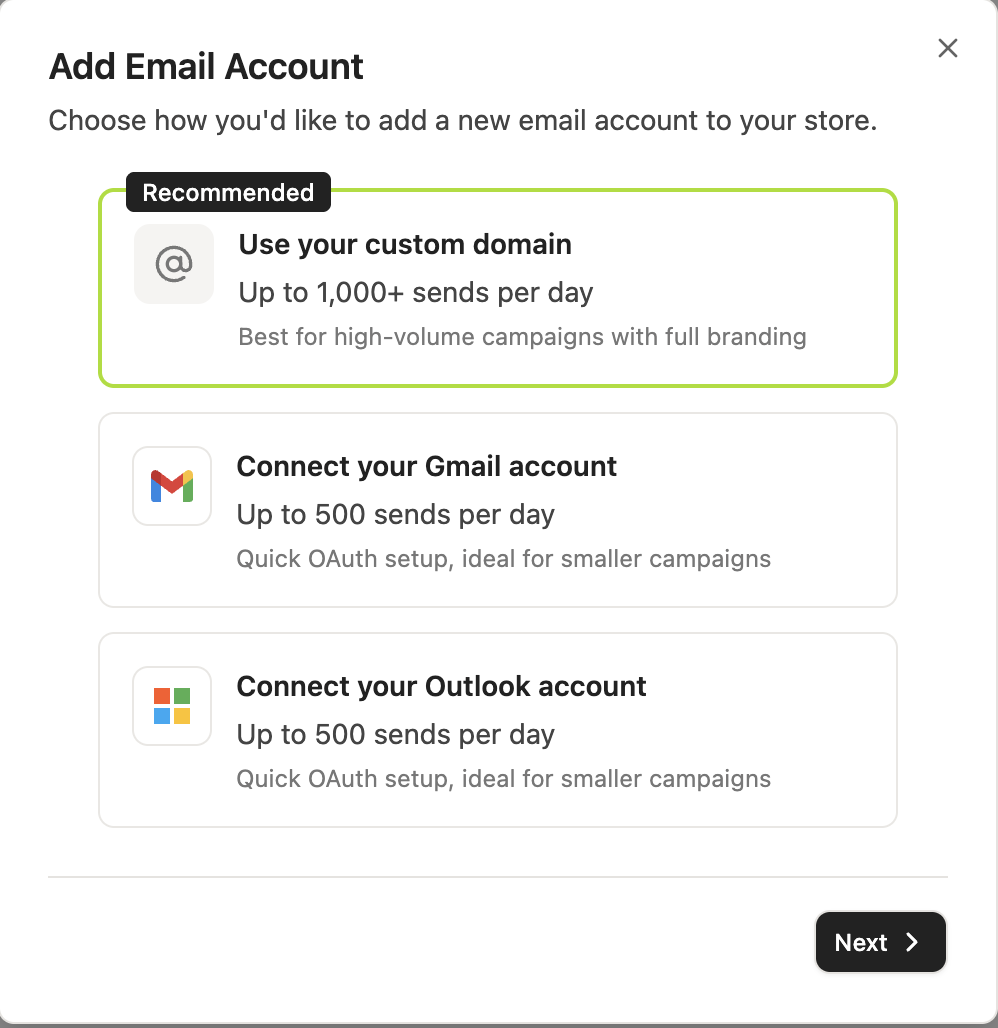
You can connect 3 types of senders:
Gmail Account
Best for:
Smaller campaigns
Quick setup
Early-stage outreach testing
Setup:
Connected via Google OAuth
Emails are sent directly from your Gmail or Google Workspace account
Key Behavior:
Creator replies sync back into Euka
You can set daily sending limits per account
The sender name is pulled from your connected Gmail identity
Use Case:
First outreach tests
Low-volume creator campaigns
Validating messaging and response rates
Note: Gmail and Google Workspace sending volume is still subject to Google's sending policies. To reduce spam risk, we recommend setting a reasonable daily sending limit and using natural, personalized outreach content.
Outlook Account
Best for:
Teams using Microsoft 365 / Outlook
Structured company outreach workflows
Shared inbox environments
Setup:
Connected via Microsoft OAuth
Emails are sent from your Outlook or Microsoft 365 account
Key Behavior:
Creator replies sync back into Euka
Sender account can be used across campaigns
Supports team-based outreach workflows
Use Case:
Agency teams
Brand partnership teams using Microsoft ecosystem
Coordinated outreach across multiple users
Note: Outlook sending volume is still subject to Microsoft's sending policies. If your IT team has an approval process for third-party apps, ask them to review the permissions shown on the Microsoft authorization screen.
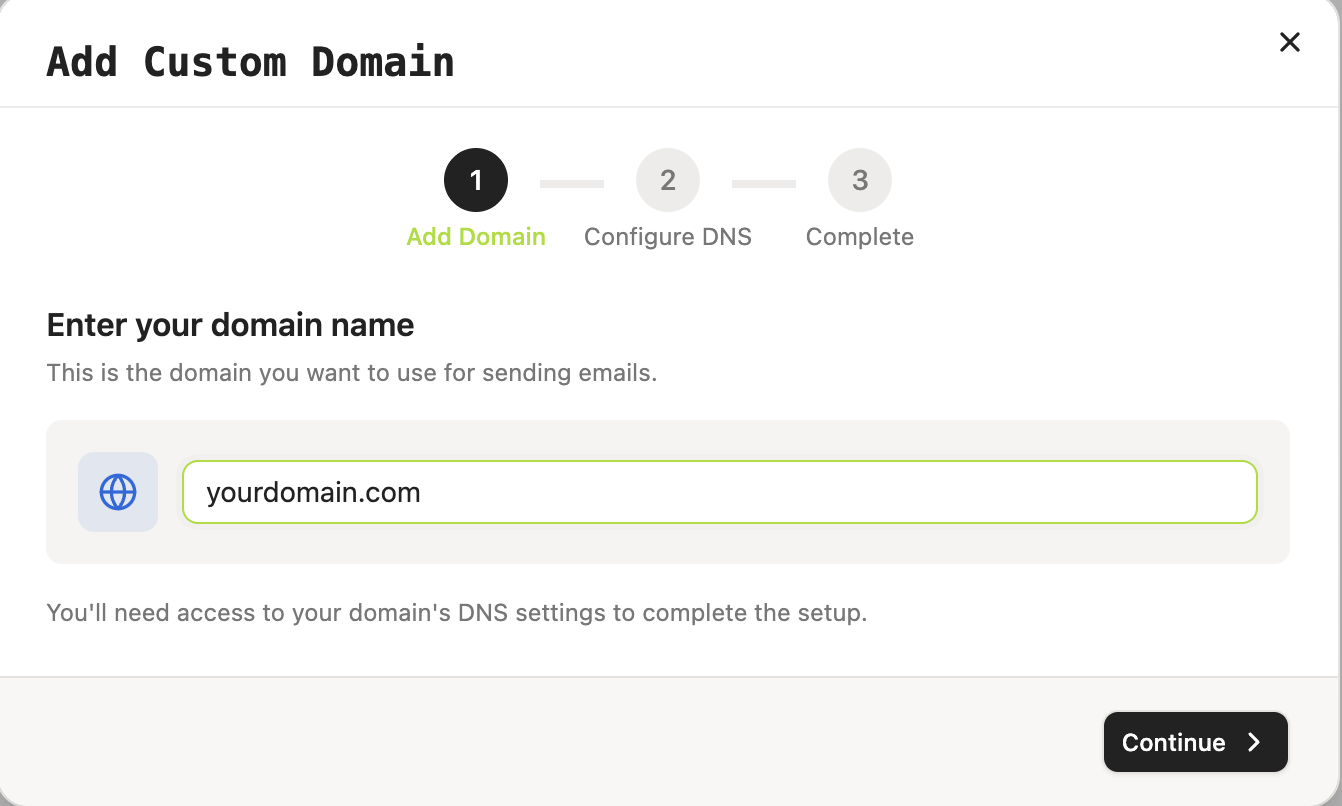
Custom Domain
Best for:
High-volume email campaigns
Fully branded creator outreach
Agencies managing multiple stores or brands
Long-term creator relationship programs
Example sender emails:
Setup Requirements:
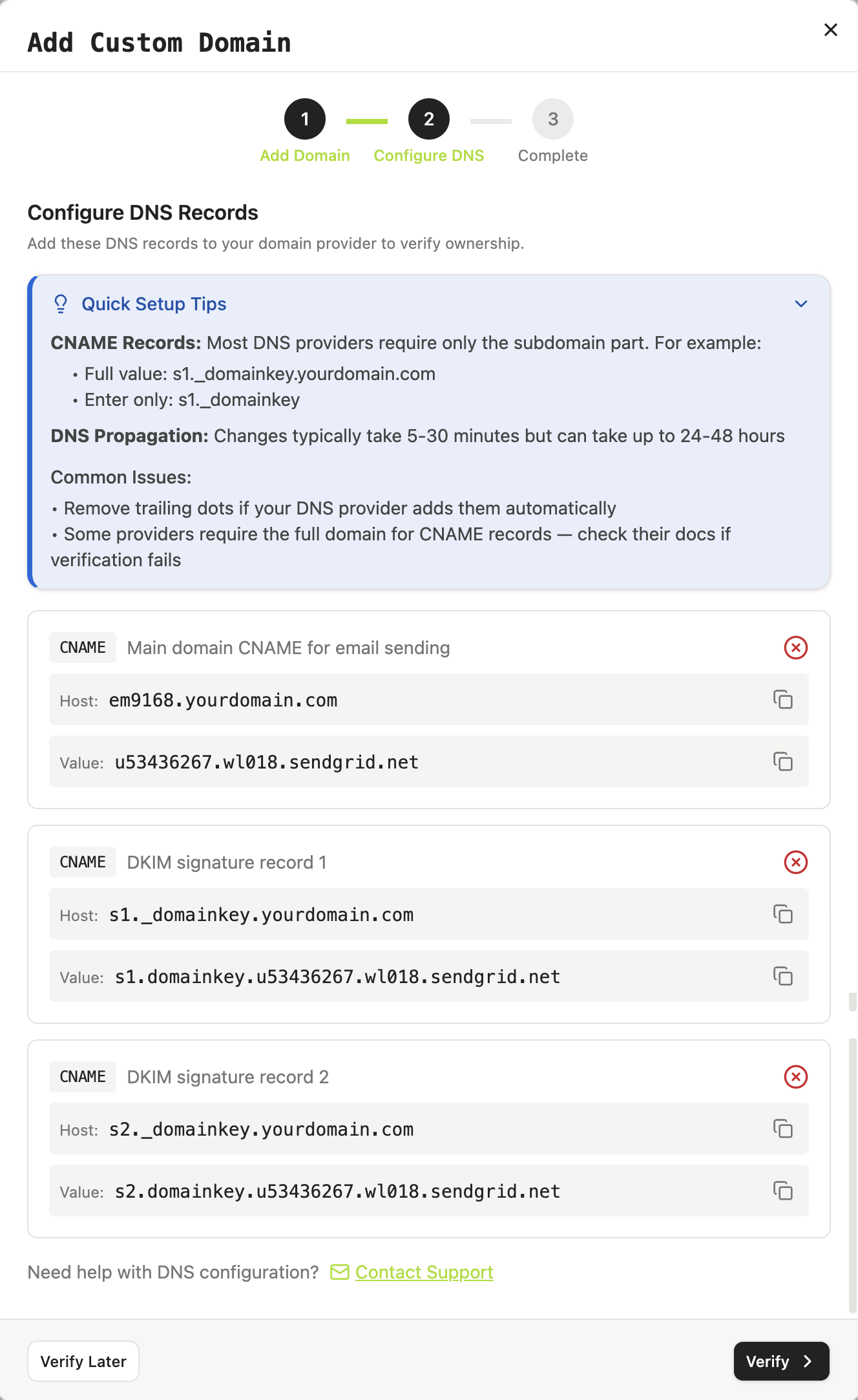
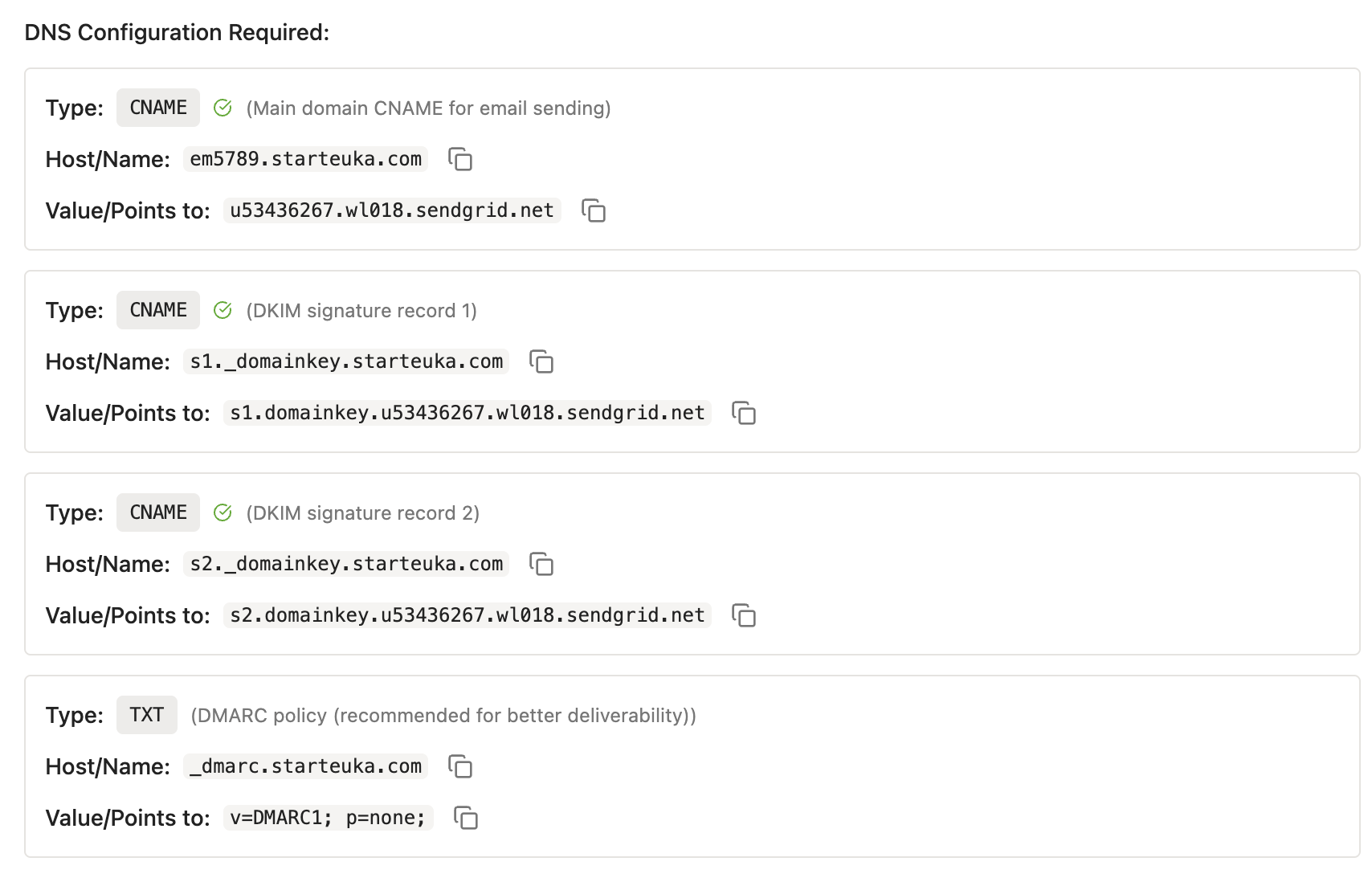
You must add DNS records to verify your domain
Typically includes:
SPF (sender authorization)
DKIM (email authentication)
Tracking records (deliverability + analytics)
What this enables:
Sends emails from your branded domain
Improves trust and recognition with creators
Improves deliverability for scaled campaigns
Supports higher-volume outreach setups
After setup:
Verified domains appear as selectable senders in Euka
You can create multiple sender addresses under the same domain
Can be used across all Email Campaign workflows
Important:
Adding a custom domain does NOT give Euka access to:
Google Workspace admin panel
Microsoft 365 admin center
Domain registrar account
Any internal company systems
Other inboxes not explicitly connected in Euka
3.2 What Euka Can Access
When you connect Gmail, Outlook, or a custom domain, Euka only uses permissions required for email outreach workflows inside the platform.
Euka Can:
Send creator outreach emails from connected accounts
Send follow-up emails based on campaign logic
Sync creator replies back into Euka
Track campaign performance:
Sent
Opened
Replied
Use configured sender name, reply-to email, and sending limits
Euka Cannot:
Access unrelated inboxes in your organization
Access accounts not connected to Euka
Access Google Drive, OneDrive, Slack, CRM, or finance tools
Manage Google Workspace or Microsoft admin settings
Delete emails from your mailbox
Send emails outside workflows configured inside Euka
Recommendation:
For agencies or brands running ongoing outreach, use a dedicated email such as:
instead of personal employee inboxes for better control and consistency.
3.3 Create Message Templates
Go to:
Outreach → Email Campaigns → Message Templates
Message templates let you reuse outreach copy across campaigns.
You can create templates for:
Product launches
Incentive campaigns
Seasonal promotions
Competitor creator outreach
Retainer recruitment campaigns
Spark code collection campaigns
Best Practices for Email Templates
1. Personalize Whenever Possible
Stronger performance comes from personalization:
Creator name
Their past videos
Products they’ve promoted before
Example:
“Loved your recent video featuring [Brand/Product].”
2. Lead With Creator Value
Creators receive many outreach messages daily.
Always prioritize:
Incentives
Retainer opportunities
Higher commissions
Paid collaboration options
Ad/code opportunities
before product explanation.
3. Keep It Short and Clear
Effective emails are:
Easy to scan
Direct on offer
Clear CTA (call-to-action)
Avoid long product introductions.
3.4 Launch an Email Campaign
Once emails and templates are ready:
Go to:
Outreach → Email Campaigns → + New Campaign
Workflow:
Select sender email (Gmail / Outlook / Custom Domain)
Choose message template
Select creators via:
Built-in filters
Uploaded creator lists
Competitor creator lists
Review campaign settings
Launch campaign
The workflow mirrors Outreach Agents, so you can easily switch between:
TikTok DM outreach
Email outreach
depending on your GMV limits and campaign strategy.
3.5 Best Practices & Operational Notes
Use Multiple Email Accounts (When Needed)
If you hit sending limits, you can connect multiple email accounts.
Benefits:
Scale outreach volume safely
Segment campaigns by brand or product
Reduce risk of spam throttling
Important:
Monitor all inboxes regularly
Ensure no creator replies are missed
Avoid overly aggressive sending patterns
Domain Warm-Up Strategy
For custom domains:
Start with low daily volume
Gradually increase sending scale
Prioritize personalized emails early on
Avoid sudden high-volume sending at the beginning to protect deliverability.
Reply Management Matters
Engagement improves deliverability over time.
Encourage creators to:
Reply to emails
Ask questions
Engage in conversation
instead of only sending one-way blasts.
Note: If you are not sure which option to choose, Gmail or Outlook is usually the fastest way to get started. If you plan to run email outreach regularly or at higher volume, we recommend using a custom domain.