Meta Ads Whitelisting User Guide
Last updated: June 14, 2026
This guide covers how brand managers use the Meta Ads feature in Euka to connect their Meta Business account, track ad performance, and set up a creator enrollment program that automatically licenses TikTok creator videos for use in Meta ads.
Video Walkthrough
For brands: https://www.loom.com/share/431bd90805a44b3fb7237b9150eaf15e
For creators - please feel free to share with creators on how payouts work: https://www.loom.com/share/2907d86114e84f15ac9983a22c62c5e1
Getting Started
1. Connecting Your Meta Business Account
Once you've gained access to the feature, navigate to Meta Ads in the left sidebar (under the Ads section).
If your account is not yet connected, click Connect Meta Account.
2. Program Setup
This is where you configure and manage the creator enrollment program — an automated system that licenses creator videos and pays creators a commission based on ad performance.
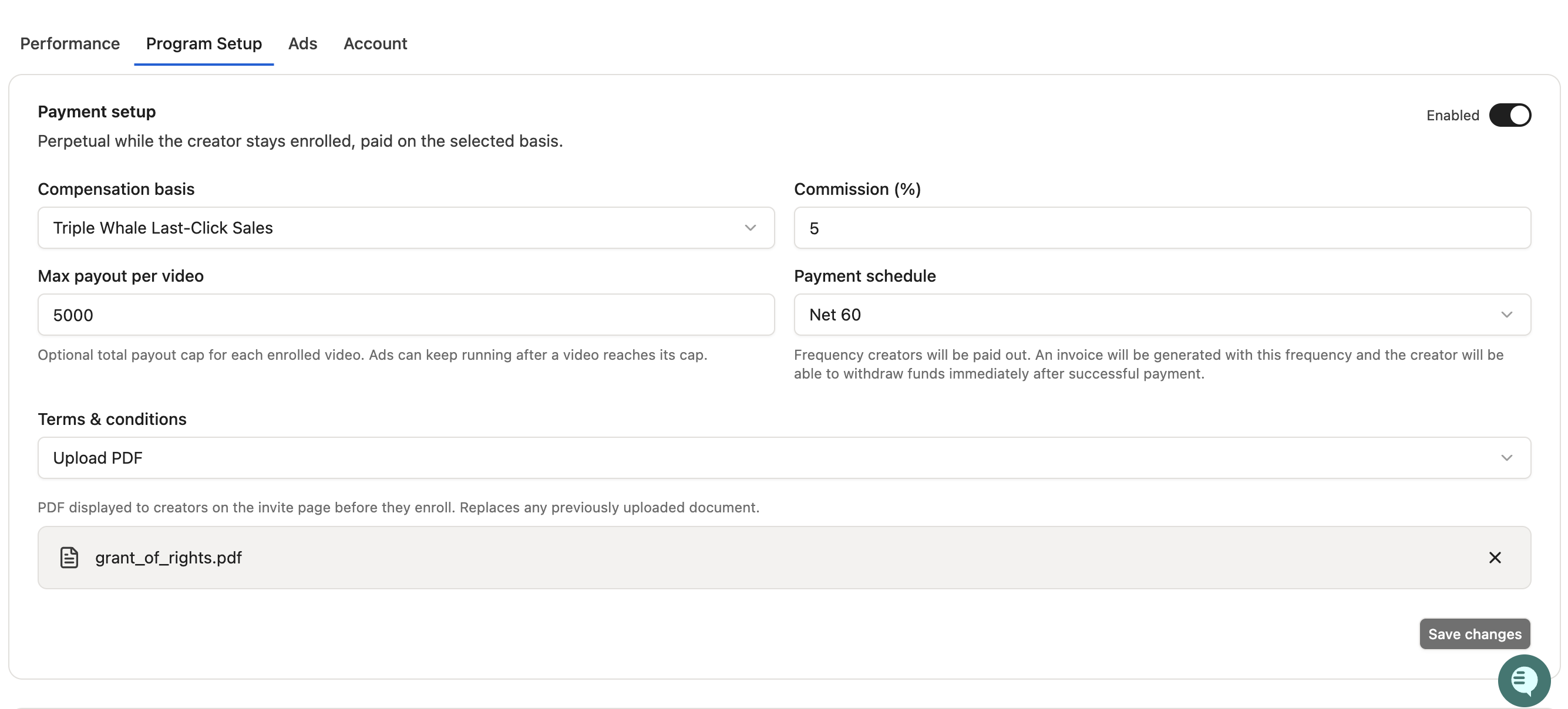
Setting up the program:
Go to the Program Setup tab.
Set your compensation terms:
Basis — what the commission is calculated on (e.g. Meta Ad Spend, Meta Website Purchase Value, Meta Omni Purchase Value).
Percentage payout — the percentage (e.g. 10%).
Max payout per video (optional) — a cap on how much any single video can earn.
Payment terms — when creators get paid (e.g. Net 30, Net 60).
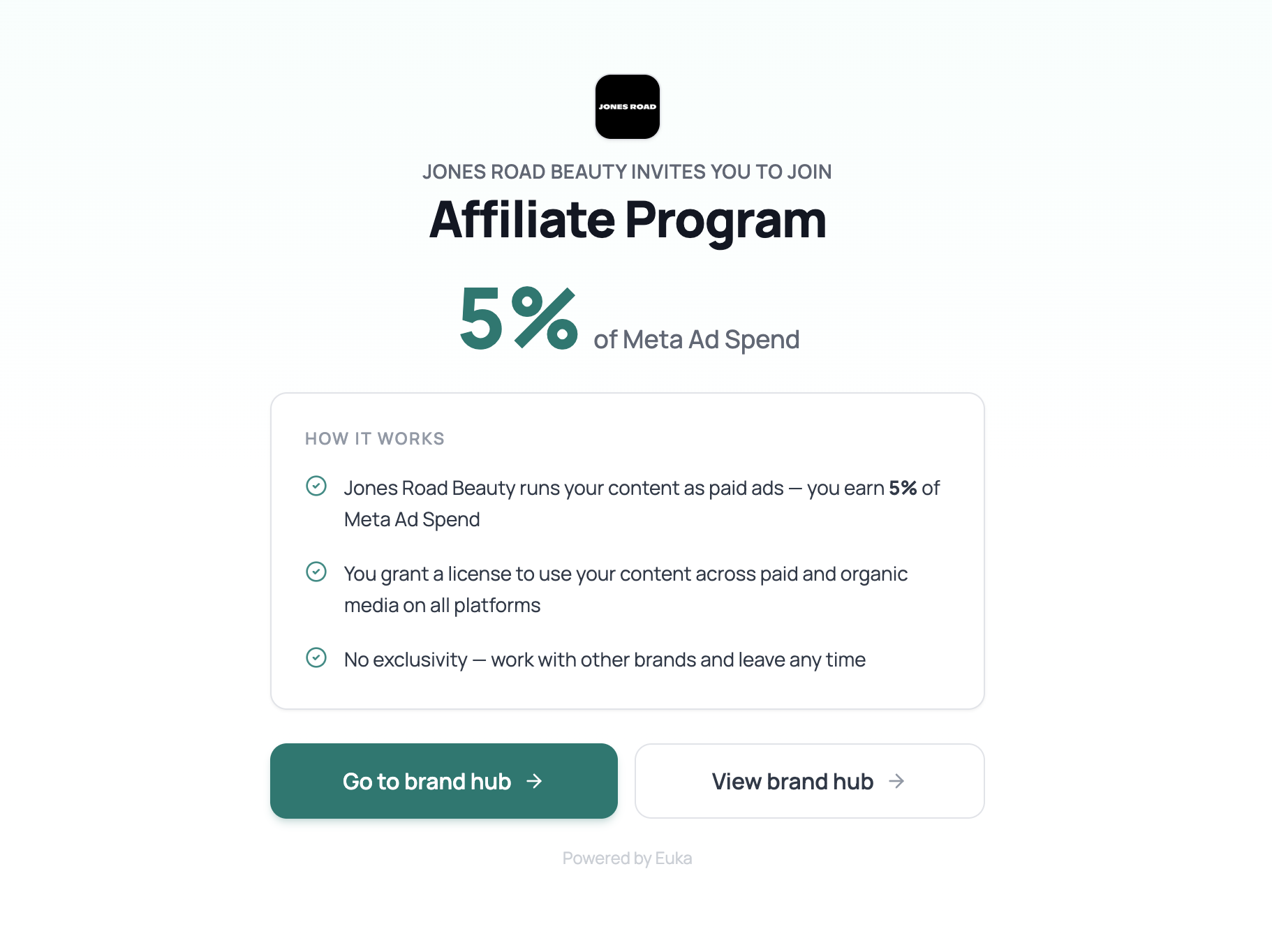
How creators enroll:
A creator visits your invite link - e.g.
https://creators.euka.ai/invite/your-brandThey review your terms and click Opt In.
The system automatically scans their TikTok videos (posted through your TikTok Shop) and adds all content to your Licensed Content pane.
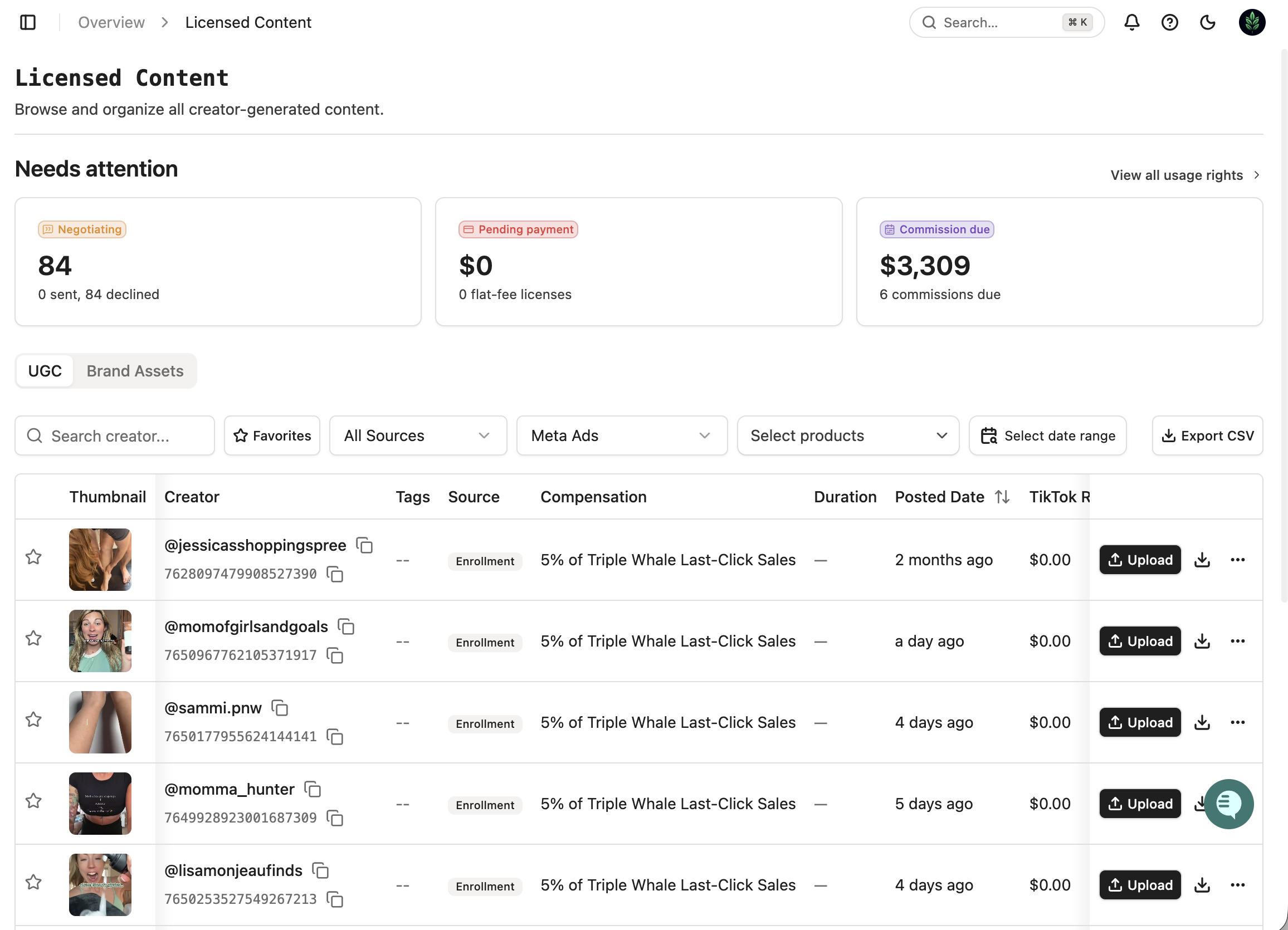
3. Uploading Content to Meta
In Licensed Content, you'll see all of the content that you've collected usage rights for. Click the Upload button for a one-click upload into the Euka Meta Ads content library.
4. Monitoring Performance
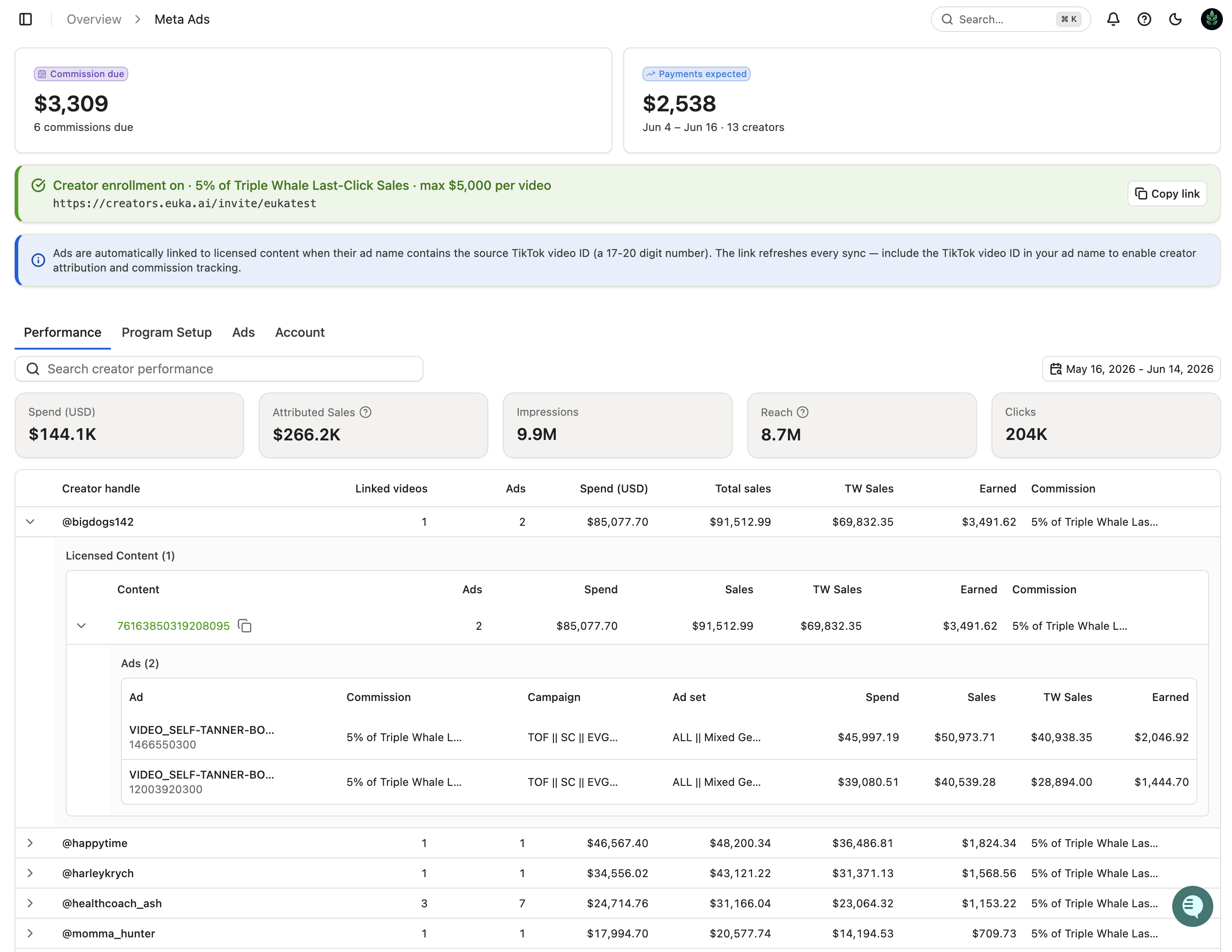
The default view. Shows aggregated ad spend, sales, and ROAS across your Meta ads, broken down by the level you choose:
Use the date range picker to choose the reporting period. Data comes from nightly syncs, so there may be a ~24-hour delay for the most recent day.
Each creator row can be expanded to see individual videos and the specific ads running against each video.
Managing enrolled creators:
The Program Setup tab shows a table of all enrolled creators with:
Creator handle and avatar
Number of licensed videos
Commission terms they agreed to
Enrollment date
Option to remove a creator (opt them out)
5. Handing Payouts
Every two weeks, we will generate the payouts for creator commissions. You can make the payments via ACH or credit card in the Usage Rights Payouts pane.
Creators will be eligible to withdraw their commissions once you've made the payment. They will see estimated earnings for any periods that have not been paid out yet.
How Ad ↔ Video Linking Works
When your media buying team creates ads in Meta, they can embed the TikTok video ID in the ad name (e.g. sid:7580086047850237215). The system automatically extracts these IDs and links the ad to the corresponding licensed content record.
This linking is what powers the Performance tab — without it, the system can't attribute spend/sales to a specific creator or video.
Tips for your media team:
Always include the TikTok video ID in the ad name using a consistent format (e.g.
_sid:VIDEO_ID_).Ads without a video ID in the name will show as "unlinked" and won't appear in creator-level performance breakdowns.
The auto-linker runs during the nightly entity sync. Newly linked content may take up to 24 hours to appear.
Triple Whale Integration
If your brand has a Triple Whale account connected (configured in Settings → Integrations), the Performance tab will also show Triple Whale attributed sales alongside Meta's own attribution. This gives you a second opinion on ROAS using Triple Whale's pixel-based attribution model.
Common Questions
Why is an ad showing as "unlinked"?
The ad name doesn't contain a recognizable TikTok video ID (a 17-20 digit number). Ask your media team to include the video ID in the ad name.
How do I change the enrollment terms?
Go to Program Setup, update the compensation values, and click Publish Terms. The new terms only apply to creators who enroll after the change. Existing enrollments keep the terms they originally agreed to.